Skip to main content
Assigning UCS codes to Retailers
This function is necessary to assign UCS (Universal Coded Character Set) codes to Retailers for working with some Suppliers. Assignment of these codes is possible through downloading an xls file or manual input.
Downloading the xls file is available to users with the roles of Administrator and Catalog Administrator.
These users can also grant access to adding UCS codes to a specific Supplier through the Control Panel.
Sending a list of new Retailers to the supplier
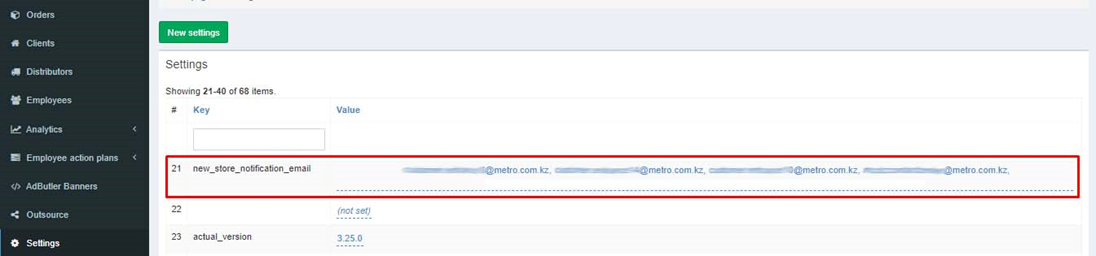
The CRM section>Settings added a key for automatically sending a list of new Retailers. After that, the supplier assigns UCS codes to those Retailers with which he is ready to cooperate. The list of new retailers in xls format is generated every Monday at 06:00 (GMT+6) and sent to all e-mails specified in the new_store_notification_email setting.
To add a new email address to which the Retailer list will be sent, enter the target email address in the new_store_notification_email key Value field.
Downloading an xls file
Initially, you need to go to the CRM section>Clients.
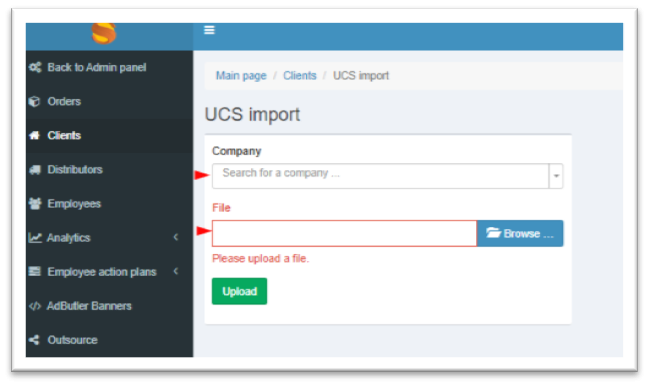
Click on the Import UCS button.
Next, you need to:
-
Choose the right supplier.
-
Click the Select button.
-
Open the desired file.
Click the Upload button.
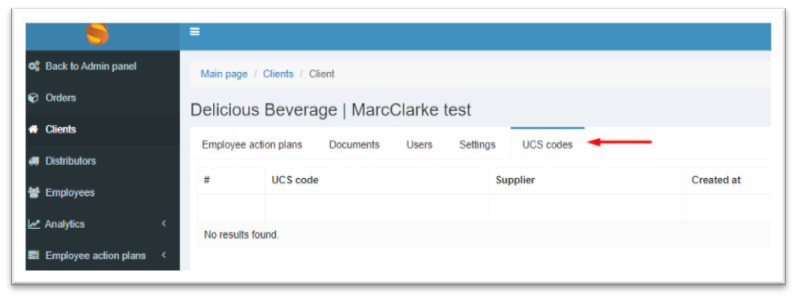
View all the specified codes for Retailer are available in the UCS Codes tab in the Client details.
Uploading a UCS report
To upload a report on assigned UCS retailers, go to the CRM section>Analytics>Adding UCS.
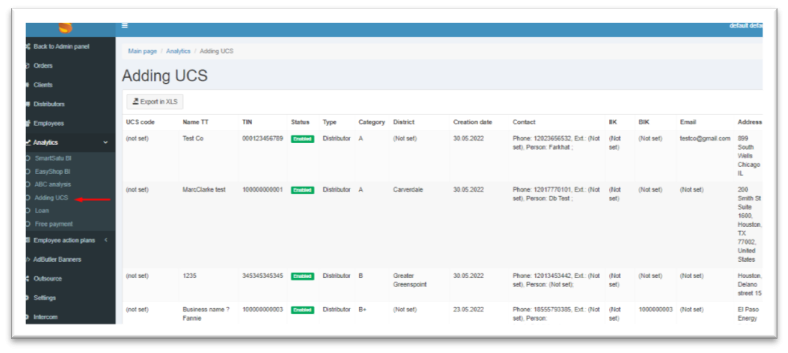
In the opening window, install:
-
The start date of the period;
-
The end date of the period.
Click the Create button.
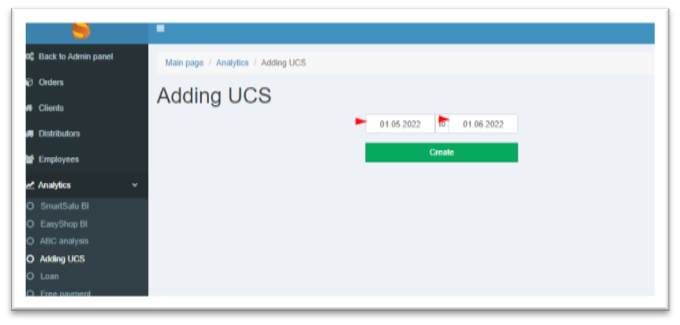
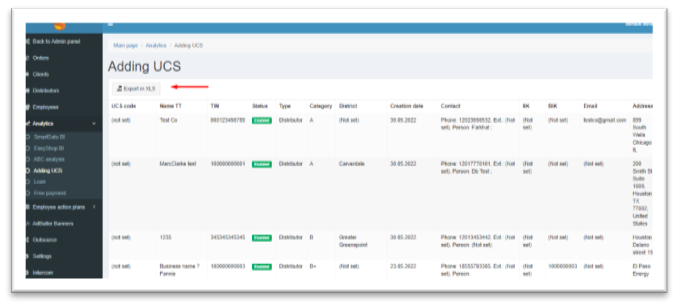
After that, a report on the assigned UCS for the selected period will appear. In addition, this report can be exported to an XLS file.
Providing access to Suppliers to add UCS code
To provide the Supplier the right to assign a Retailer UCS code, you need to go to Management>Availability of the UCS assignment.
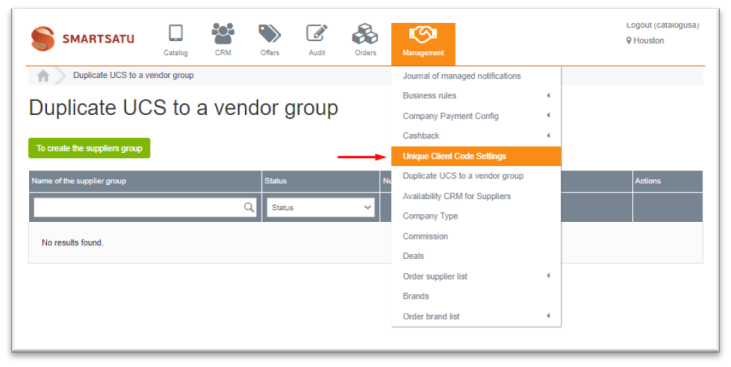
Select the Suppliers who will have access to the function of adding the UCS code.
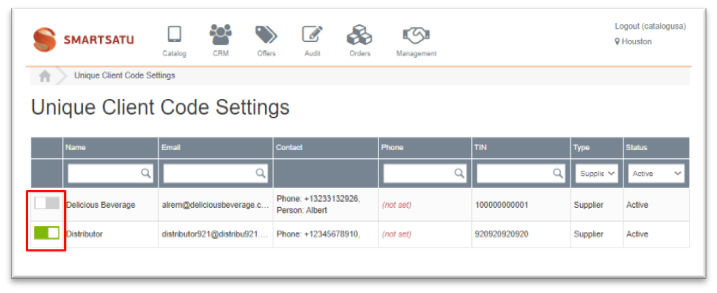
Assignment of UCS codes to Retailers by the Supplier
Go to CRM>Clients.
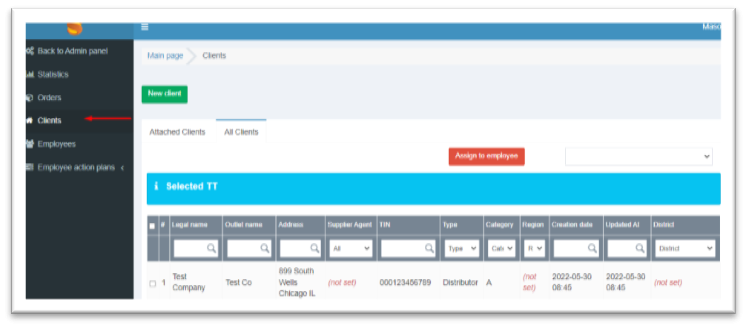
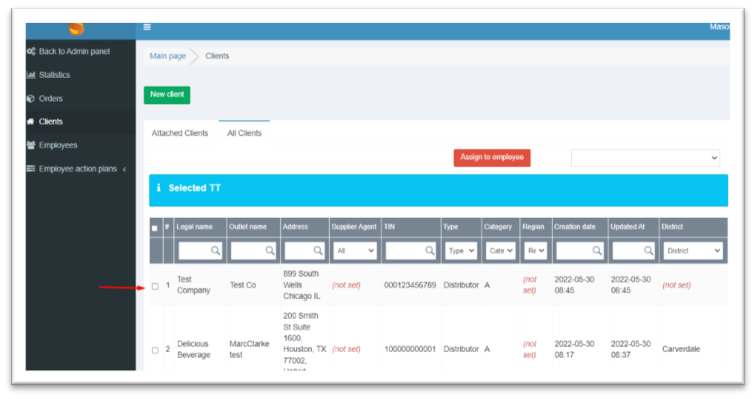
Select the desired Retailer from the My Clients or Clients tab.
After selecting the desired Retailer, go to the Settings tab.
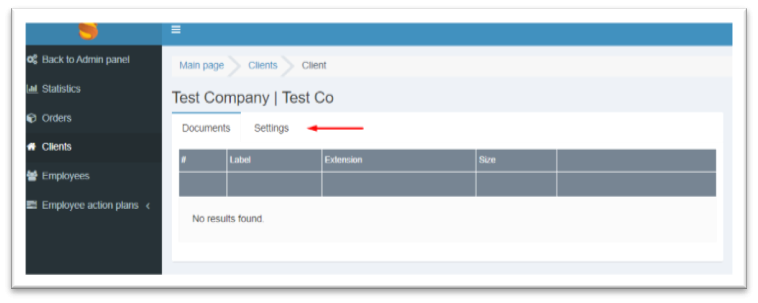
In the Additional No. field, enter the UCS code and click Save.


